How to Get the Transcript of Any YouTube Video (Free, in Seconds)
By TubeScope Editorial Team · 2026-09-02 · 7 min read
Every YouTube video already has a script hiding inside it — the caption track. Getting it out turns a video into raw material: something you can search, quote with timestamps, translate, or spin into a week of other content. Here's how to extract it in seconds, what the auto-generated versions get wrong, and what smart creators actually do with transcripts.
The fastest way: paste a link
Open the free TubeScope Transcript Extractor, paste any YouTube link (or just the video ID), and the full transcript appears — usually in a few seconds. From there you can:
- Toggle timestamps — clean flowing prose for reading, or timecoded lines where every timestamp is a link that jumps to that exact second on YouTube
- Pick a language — creator-made captions and YouTube's auto-generated tracks, with auto ones clearly marked
- Copy or download — plain text for writing, or SRT subtitle files for video editors and translators (a format most free tools skip)
- Read the stats — word count and speaking pace, handy when you're studying how fast top creators actually talk
No login, no API key, and a design point worth knowing: transcripts belong to the video's creator, so the tool serves them to you on demand and never stores or republishes them as pages.
The manual ways (and their limits)
On YouTube itself: under a video, tap "…more" in the description, then "Show transcript" — a panel opens with timecoded lines. It works, but there's no copy button, no download, and selecting hundreds of lines by hand is misery.
In YouTube Studio (your own videos): Subtitles → your language → the editor shows the full text, which you can copy. Fine for your own channel; useless for studying anyone else's.
Auto-generated vs creator captions — what to expect
Roughly speaking, every popular video has at least YouTube's auto-generated captions, produced by speech recognition. They're impressively good and completely usable for research and repurposing — but expect no punctuation, occasional misheard names ("MrBeast" becoming "Mr Beast's" cousin nobody knew), and garbled technical terms. Creator captions — written or reviewed by the channel — read clean. The extractor labels each track so you know which you're getting.
What to actually do with a transcript
- Study the hooks of winning videos. Pull the transcripts of the top three videos ranking for your topic and read only the first 30 seconds of each. The patterns — a question, a promise, a number — jump out in text far faster than on video. Pair it with the Thumbnail Tester and you're reverse-engineering the whole click.
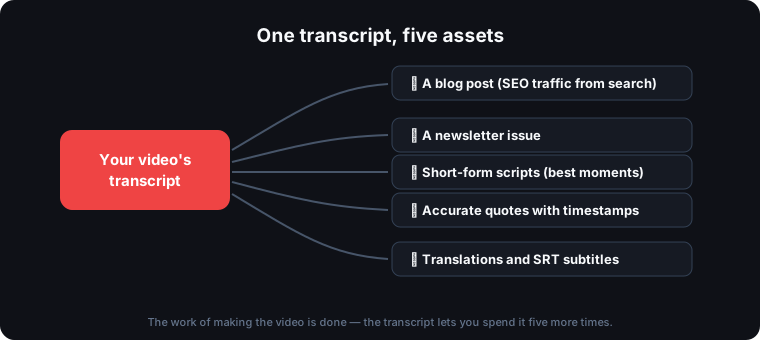
- Repurpose your own content. A 15-minute video is a ~2,000-word draft: a blog post that earns search traffic, a newsletter issue, three short-form scripts cut from the best moments.
- Quote accurately. Writing about a video? Get the words exactly right and link the timestamp so readers can verify — the difference between commentary and hearsay.
- Translate and subtitle. Export the SRT, run it through translation, upload as subtitles — the cheapest international expansion a channel can do.
- Make your archive searchable. Which video did you explain X in? Download transcripts of your uploads once, and Ctrl+F answers it forever.
When it doesn't work (and why)
Two honest caveats. A small number of videos have no captions at all — usually music videos or channels that disabled them — and no tool can extract what doesn't exist. And occasionally YouTube rate-limits transcript fetching when many requests arrive in a short window; it clears by itself, and retrying after a few minutes usually works. Already-fetched videos stay cached and load instantly.
Grab a script, study what works, then sharpen your own packaging: the AI Title Rewriter for the headline, the Tags & SEO tool for discoverability, and the Transcript Extractor whenever you need the words themselves.
Frequently asked questions
How do I get a transcript of a YouTube video that isn't mine?
Use a transcript extractor: paste the video's URL into the free TubeScope tool and the full text appears in seconds, pulled from the video's caption tracks — including YouTube's auto-generated captions. YouTube's own 'Show transcript' panel also works but offers no copy or download.
Can I download YouTube subtitles as an SRT file?
Yes — the TubeScope Transcript Extractor exports any available caption track as an SRT subtitle file, the standard format for video editors and translation workflows, as well as plain text.
Are YouTube auto-generated captions accurate?
Good enough for research and repurposing: modern speech recognition gets the vast majority of words right, but expect missing punctuation and occasional misheard names or technical terms. Creator-written captions, where available, read much cleaner — the tool labels which type you're getting.
Is extracting a transcript legal?
Reading captions of a public video for personal use — study, quoting, accessibility, translation — is a normal use of published content, and it's what YouTube's own transcript panel exists for. What you shouldn't do is republish someone's full transcript as your own content; that's their copyrighted script.
Try it yourself: Transcript Extractor · AI Title Rewriter · Thumbnail Tester